Series · Part 0 of 8

What Happens When You Hit Enter?
You type a URL and press Enter. 200 milliseconds later, a page appears. Here's every single step that happened in between — from DNS lookup to browser paint.
You type https://google.com and press Enter.
About 200 milliseconds later, a page appears.
That’s one-fifth of a second — faster than a blink. In that time, your computer made a phone call, negotiated a contract, agreed on a language, sent a question, and received an answer. It did this without you thinking about any of it.
This series is about all of it.
The eight steps
Every page load goes through the same sequence. The details vary — cached lookups skip steps, HTTP/2 changes how requests are made — but the skeleton is always this:
1. URL Parsing
Your browser reads the address and breaks it down. https://google.com/search?q=hello becomes:
- Protocol:
https— use TLS encryption, connect on port 443 - Domain:
google.com— the name of the server to find - Path:
/search— what to request once connected - Query:
q=hello— extra data to pass along
No network yet. This is purely local — the browser splitting a string.
2. DNS Lookup
Your browser now knows it wants google.com — but it needs an IP address to actually connect. IP addresses are what the internet routes by; domain names are just human-readable labels.
DNS (Domain Name System) is the lookup service that translates one to the other. Your browser checks its own cache, then your operating system’s cache, then asks a resolver (usually run by your ISP or set to 8.8.8.8), which eventually traces the answer through a chain of nameservers.
The result: 142.250.80.46. The full chain might be 6 hops — but with caching, it’s usually just one.
Deep dive: How DNS Works →
3. TCP Handshake
You have an IP address. Now your browser needs to open a connection to it.
TCP (Transmission Control Protocol) is the layer that makes connections reliable. Before any data is sent, both sides shake hands: three packets (SYN → SYN-ACK → ACK) to establish a shared understanding and open a virtual pipe.
This takes one round trip — the time for a packet to travel to the server and back.
Deep dive: How TCP Works →
4. TLS Handshake
The TCP connection is open — but anyone between you and the server can read everything on it. Your ISP, your router, any network device in between.
TLS (Transport Layer Security) fixes this. In another single round trip, your browser and the server negotiate an encryption scheme, the server proves its identity with a certificate, and both sides independently derive the same secret key. Everything from this point is encrypted.
This is what the padlock in your browser means.
Deep dive: How TLS/HTTPS Works →
5. HTTP Request
Secure tunnel established. Now your browser asks for what it wants.
HTTP (HyperText Transfer Protocol) is the language of the request. It looks like:
GET /search?q=hello HTTP/2
Host: google.com
Accept: text/html
Cookie: session=abc
This travels encrypted through the TLS tunnel to the server.
Deep dive: How HTTP Works →
6. Server Processing
The server reads your request, runs its application code, queries its databases, and assembles a response. This is the “black box” step — entirely within the server’s control.
Time To First Byte (TTFB) measures how long this takes. A slow TTFB means a slow server, and no amount of network optimization can compensate for it.
7. HTTP Response
The server sends back:
HTTP/2 200 OK
Content-Type: text/html
Cache-Control: private

<!DOCTYPE html>...
The browser starts parsing before the response finishes arriving. As it discovers CSS files, JS files, and images in the HTML, it immediately fires more requests for them — reusing the same TLS connection.
Deep dive: How HTTP Works →
8. Browser Renders
The browser parses HTML into a DOM tree. It applies CSS into a CSSOM. It runs JavaScript. It calculates layout, performs a paint pass, and composites layers.
Pixels appear on screen. The DOMContentLoaded event fires. Eventually, all resources loaded, the load event fires.
You see the page.
Why does this matter?
Most developers don’t need to think about all this most of the time. But understanding the stack makes you better at:
Performance debugging. A slow page load might be DNS (slow lookup), TTFB (slow server), or render-blocking resources (bad JS order). You can’t fix what you can’t name.
Security intuition. HTTPS isn’t just a checkbox. Knowing what TLS actually does helps you reason about what “secure” and “not secure” actually mean.
Infrastructure decisions. CDNs work by putting servers closer to users — reducing round-trip time for TCP and TLS handshakes. HTTP/2 multiplexing changes how you should structure your assets. These trade-offs only make sense when you understand the underlying layers.
The series
Each post in this series takes one step and goes deep:
| Post | What it covers |
|---|---|
| How DNS Works → | The resolver chain, record types, caching and TTLs |
| How TCP Works → | The handshake, reliability guarantees, TCP vs UDP |
| How TLS/HTTPS Works → | Encryption, certificates, the padlock |
| How HTTP Works → | Methods, status codes, headers, the request cycle |
| How HTTP/2 Works → | Multiplexing, why it’s faster, what changed |
| How WebSockets Work → | Persistent connections, real-time, push |
Start anywhere. Each post stands alone — but they’re richer when read in order.
How the Internet Works · 8 of 8 published
- 0 What Happens When You Hit Enter?
- 1 How DNS Works — The Internet's Phone Book
- 2 How TCP Works — The Internet's Delivery Guarantee
- 3 How HTTPS Works — The Lock Icon Explained
- 4 How HTTP Works — The Language of the Web
- 5 How HTTP/2 Works — The Speed Upgrade
- 6 How WebSockets Work — Real-Time, Both Ways
- 7 How SFTP Works — Secure File Transfers
Related posts
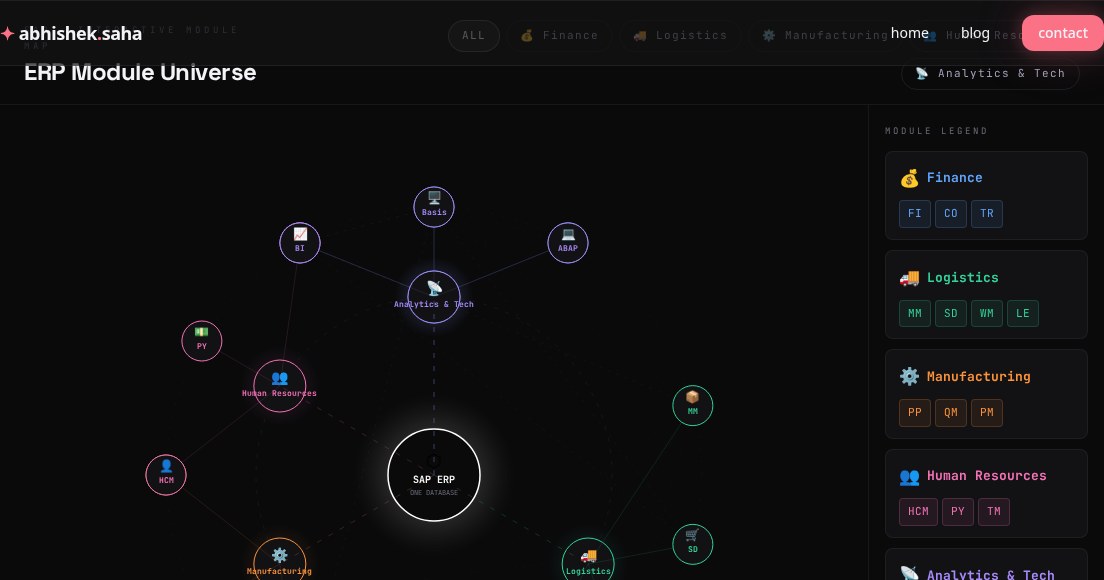
SAP ERP Module Universe — Interactive Map
A visual guide to SAP's core ERP modules — Finance, Logistics, Manufacturing, HR, Analytics, and how they all connect through one database.
Read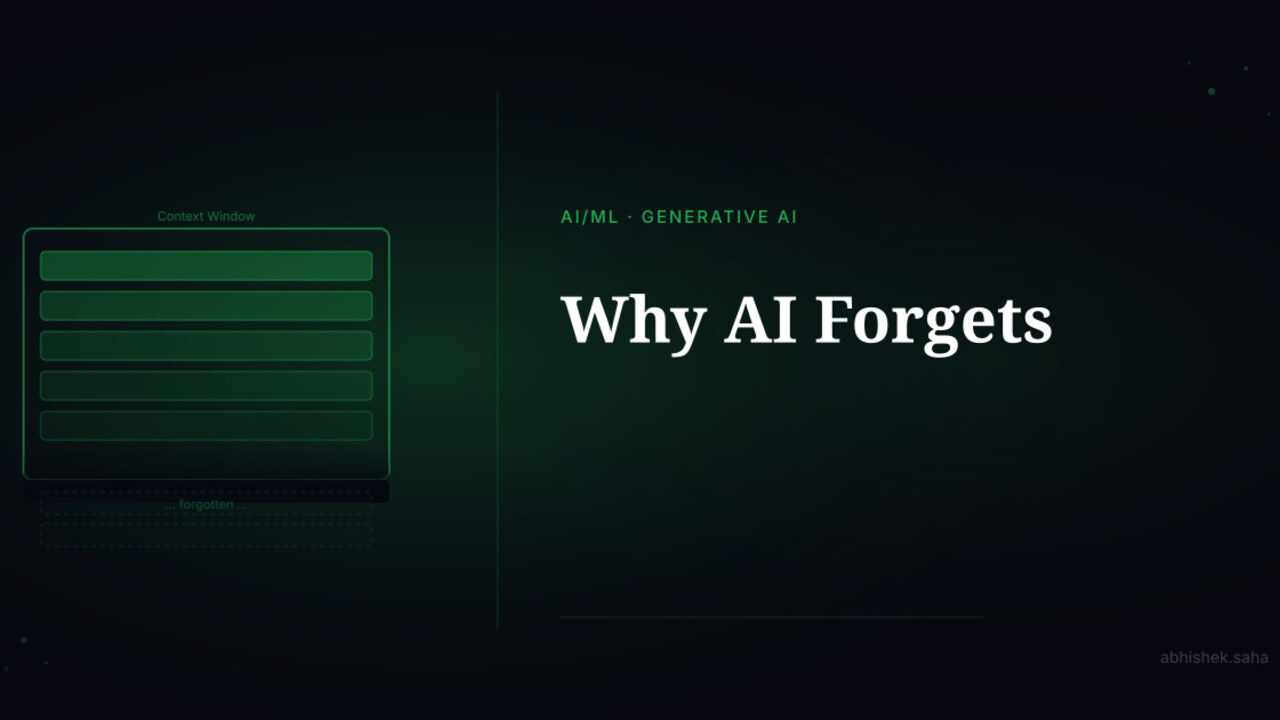
Part 5 — AI Demystified
Why AI Forgets
Mid-conversation, AI suddenly doesn't remember what you said earlier. This isn't a bug — it's the context window. Here's how it works and how to work around it.
Read
Get new posts in your inbox
No spam. No digest. Just a note when I publish something new.
Discussion
On this page